
Last updated April 5, 2026
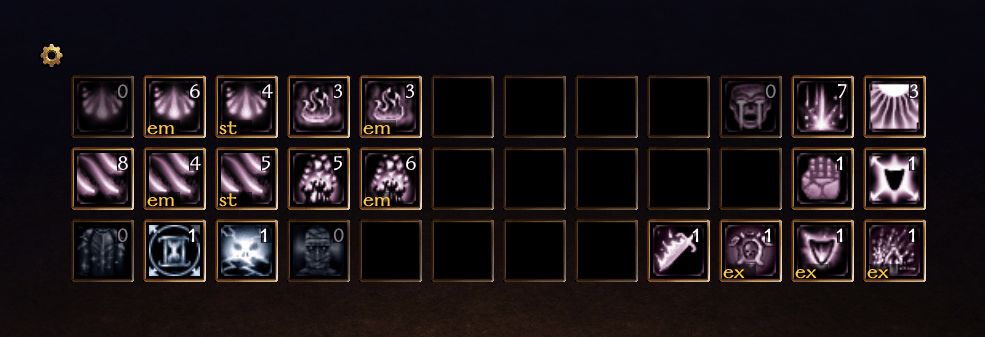
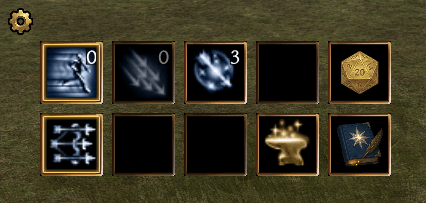
Custom NUI Quickslots are available in addition to the default quickslots. They let you assign custom actions, items, spells, feats, and more from a movable and resizable interface. Once assigned, you can use the quickslots just as you would the default quickslots.
Use the !quickslots chat command to toggle the custom quickslots window open or closed.
Note: Custom actions, feats and spells are currently supported. Items and other special functionality will be added in future updates!
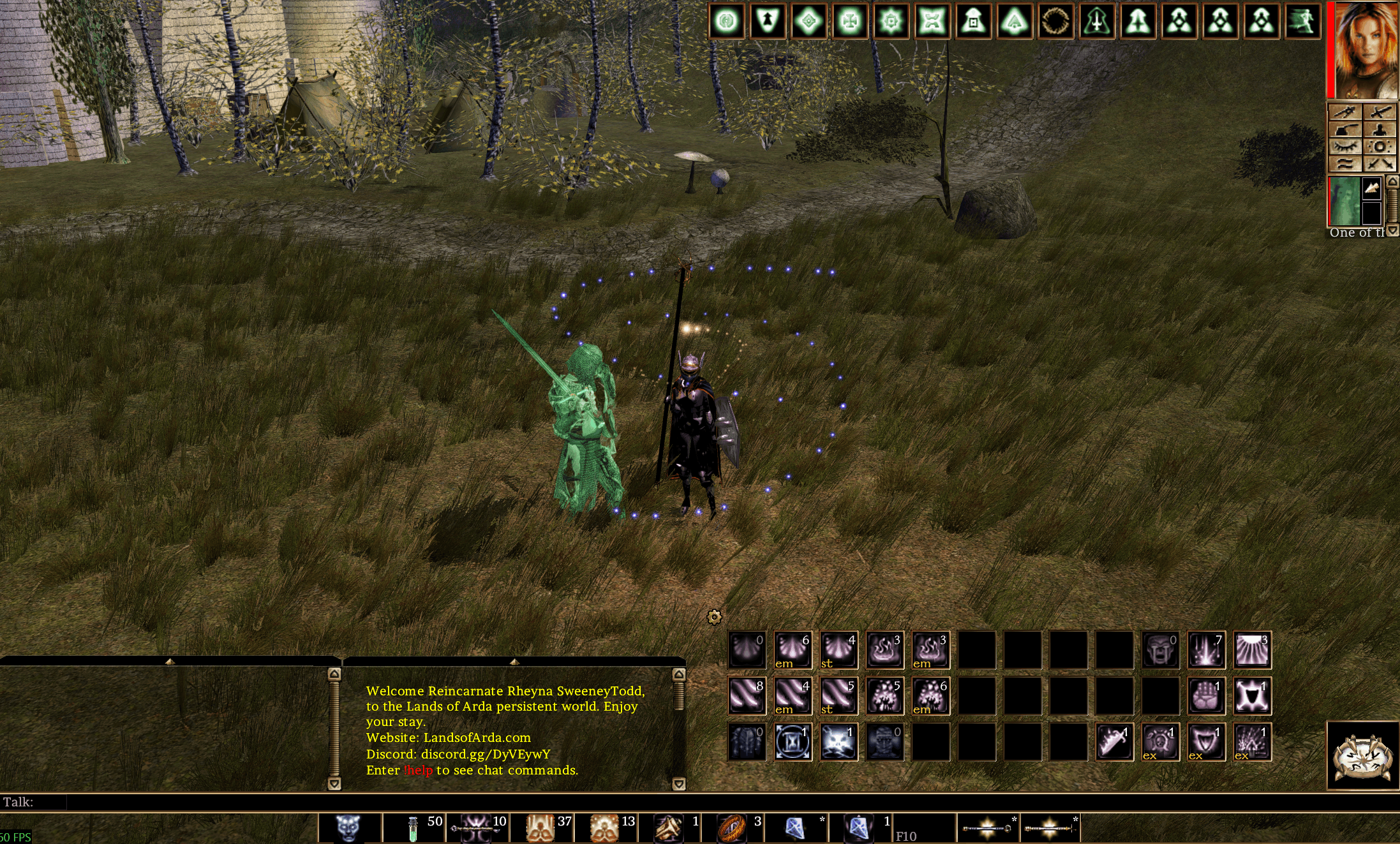
Configuration
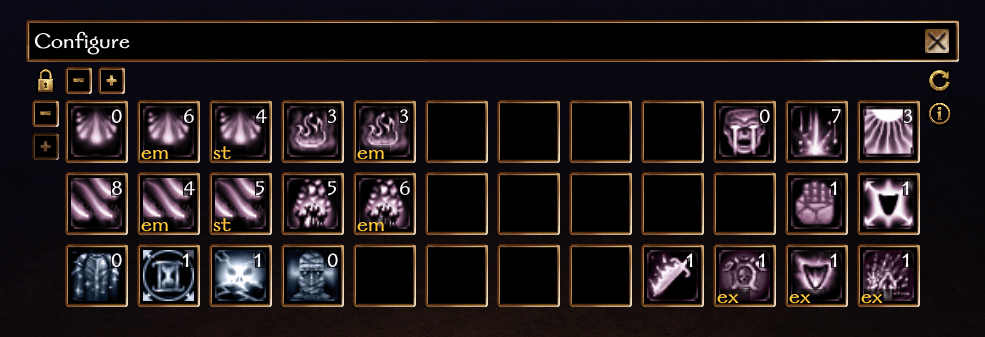
- After opening the quickslots window, click the gear icon to enter configuration to move, assign, or edit the quickslots.
- You can resize the quickslots grid from
1-3 rowsand1-16 columnsfor a total of48slots, limited by your current screen size. - To clear all assigned quickslots to empty, click on the reset icon and confirm the action.
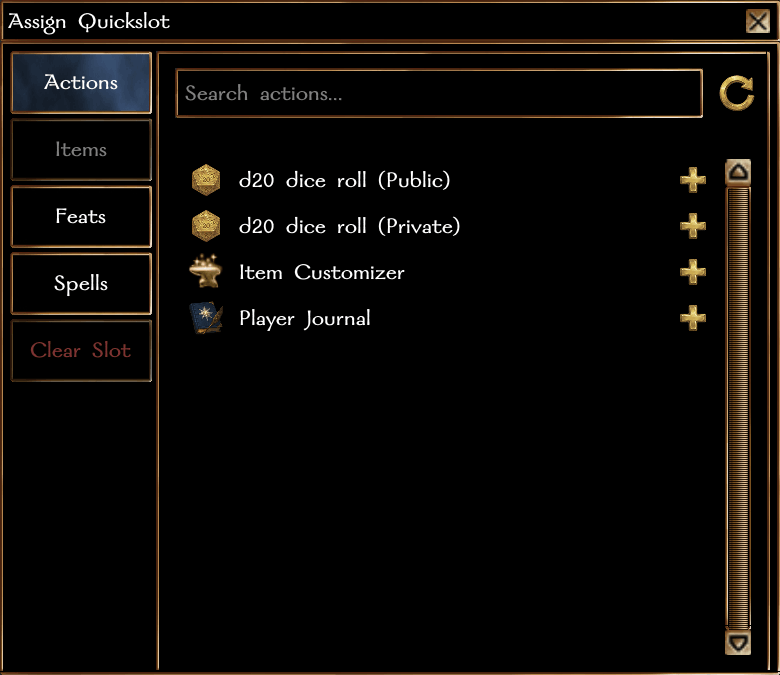
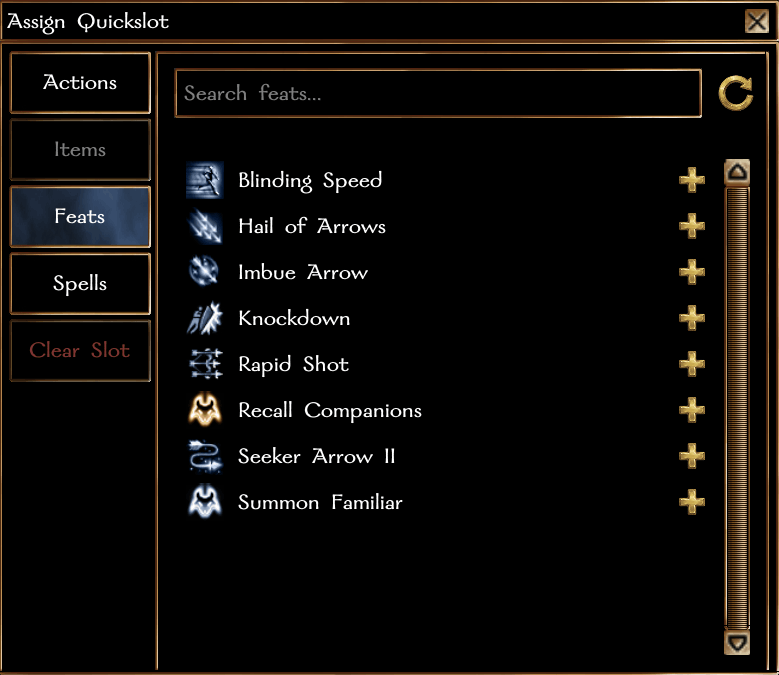
- Click on a quickslot to bring up the picker window to add or change an assigned quickslot.
- When you're done editing your quickslots, click the lock icon to lock the quickslots in place and make them useable.
Actions
- d20 dice roll (Public): roll a d20 dice and display the result in the chat window to all players.
- d20 dice roll (Private): roll a d20 dice and display the result only to yourself.
- Item Customizer: open the item customizer conversation window to customize the appearance of items and your character's combat animations.
- Player Journal: open your player journal.
Feats
- On the feats tab in the picker window, you can filter feats by search.
- Active combat feats (e.g. power attack, rapid shot, etc.) will flash in the assigned quickslots when they are currently active.
- Feats with a duration (e.g. blinding speed, divine might/power, etc.) will also flash in the assigned quickslots while they are active.
- Only the feats you have learned will appear in the picker window.
Spells
- On the spells tab in the picker window, you can filter spells by search and by spell source (class, cleric domains, epic spells) using the dropdown.
- After selecting a spell that has meta-magic options, a popup will appear to choose the assigned meta-magic for that spell. If no meta-magic is available for that spell, it will assign the default spell to the slot.
- Only the spells and meta-magic feats you have learned will appear in the picker window.
Note: Spell targeting should generally behave the same as if using the default quickslots. If you notice any bugs or different behavior, please let us know on Discord.


Persistence
- Layout, position, open state, and slot assignments are stored and persisted per character.
- Desktop clients automatically reopen the window on later logins if left in the open state. The quickslots are disabled on mobile devices.